Change your Minecraft version
Every server starts on Paper with the latest version. You can switch to any version Paper supports.
Make a backup first. Upgrading a world is one-way: once a world has opened on a newer version, it can't safely go back to an older one.
1. Set the version
- In the game panel, open Startup.
- Set Minecraft Version to the version you want, for example
1.21.4. Uselatestfor the newest release. - Leave Build Number on
latestunless you need a specific Paper build. - Make sure Server Jar File is
server.jar.
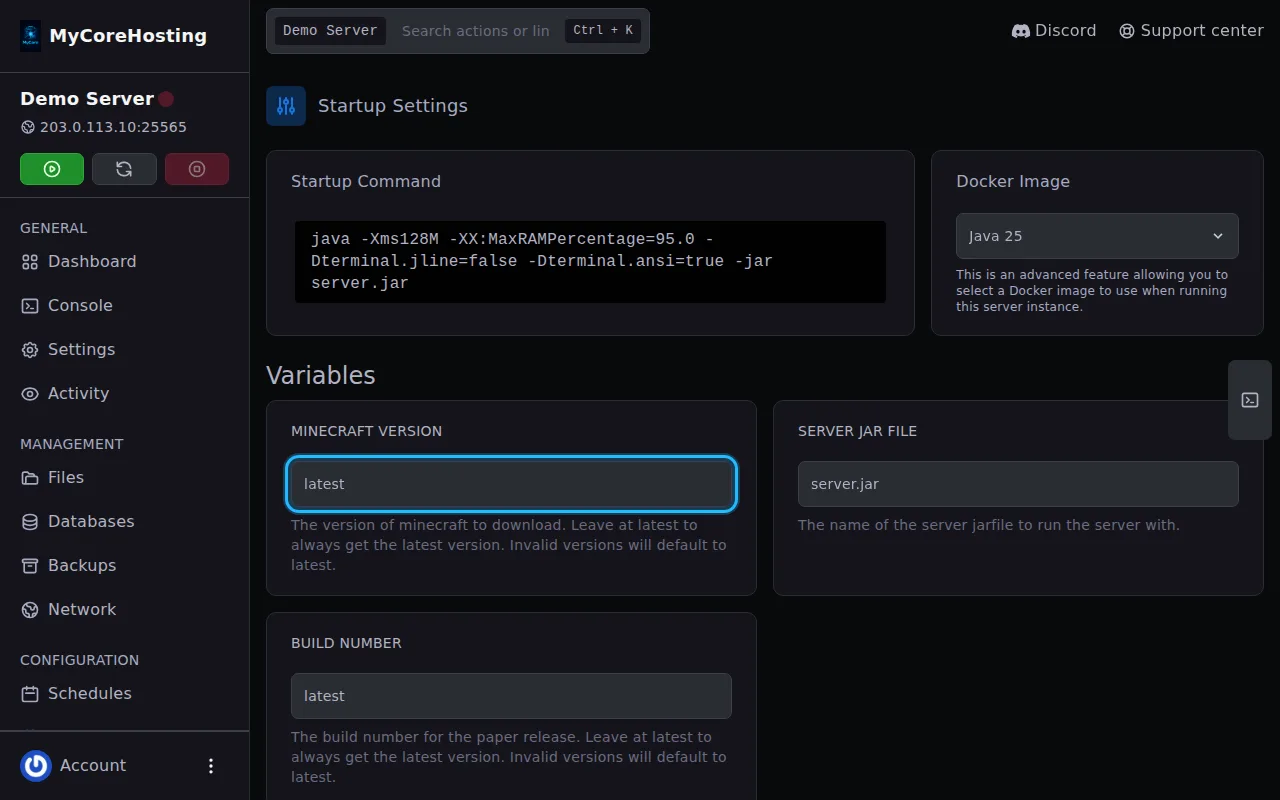
2. Pick the matching Java version
Still in Startup, choose the Docker Image:
- Java 25: Minecraft 26.1 and newer
- Java 21: Minecraft 1.20.5 to 1.21.x
- Java 17: Minecraft 1.18 to 1.20.4
- Java 16: Minecraft 1.17
- Java 8 or 11: Minecraft 1.16.5 and older
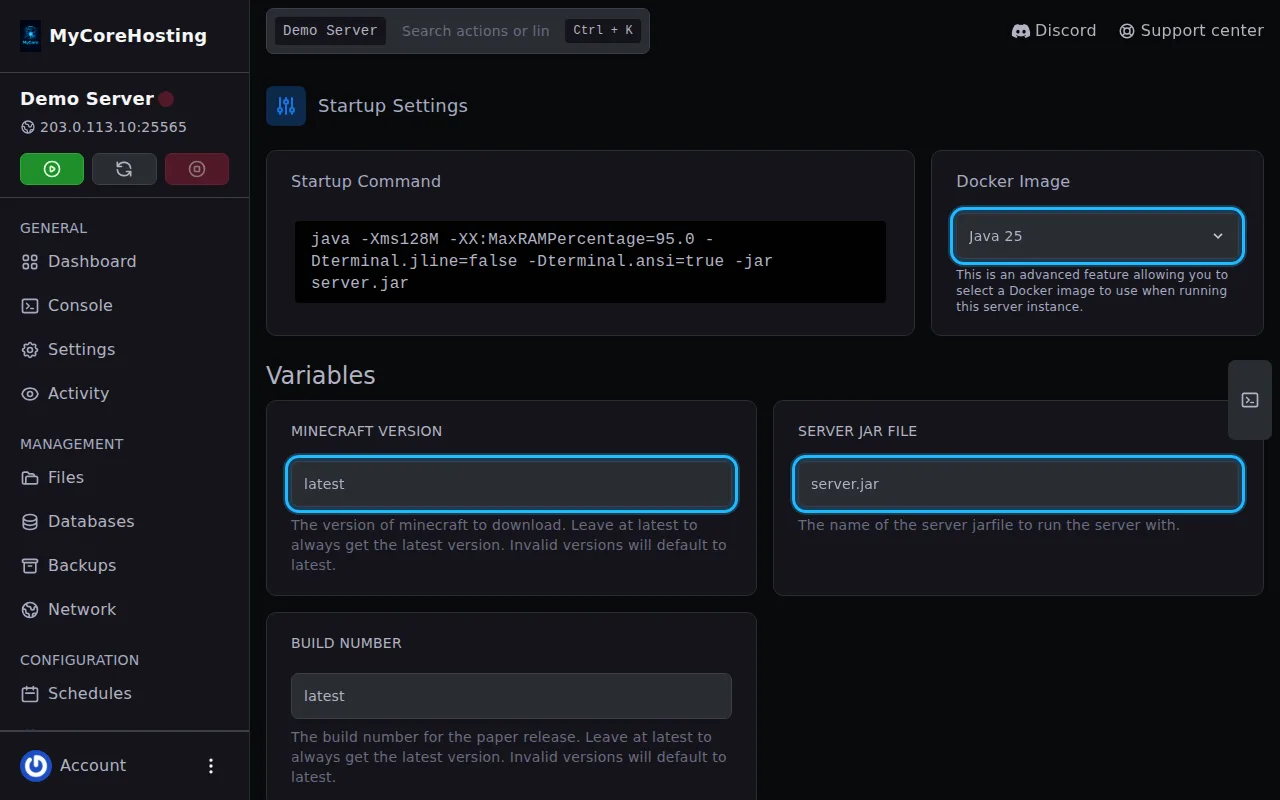
3. Download the new version
- Open Settings, click Reinstall Server, and confirm with Yes, reinstall server.
- This downloads the Paper jar for your chosen version. Your worlds, plugins and settings are kept. The old jar is renamed to
server.jar.old. - When it's done, Start the server.
After changing versions
- Update your plugins to versions made for your new Minecraft version. Old plugins are the most common cause of errors after an upgrade.
- Players must use the same Minecraft version to join, unless you add a plugin like ViaVersion.
Troubleshooting
- "UnsupportedClassVersionError" or "requires Java 21": the Java version is too old. Pick a newer Docker Image and restart.
- Install fails with "version not found": Paper doesn't have that version. Check the exact version name on papermc.io.
Stuck?
Open a ticket in the client area and tell us what you've tried. We'll point you in the right direction.
Open a ticket