Create and use a MySQL database
Every MyCore server includes a MySQL database. Plugins use it to store data reliably, or to share data between servers.
1. Create the database
- In the game panel, open Databases and click New Database.
- Give it a name, like
plugins. Leave Connection From empty (that allows connections from anywhere, which you need for desktop tools). - Click Create Database.
2. Get the connection details
Click Database Details next to your database. You'll see:
Endpoint:  db.example.com:3306   (yours is shown in the panel)
Database:  s12_plugins           (the Name column)
Username:  u12_AbCdEf1234
Password:  shown in Database Details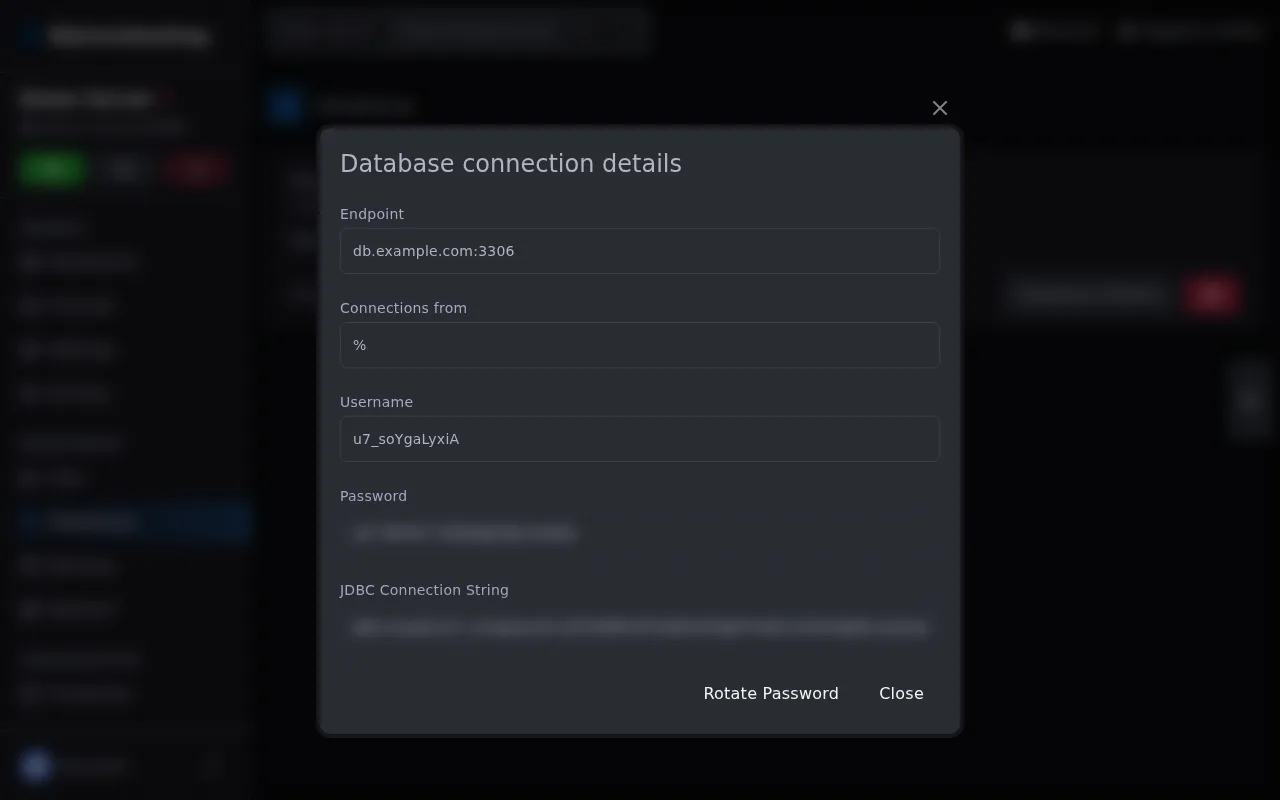
Addresses in these pictures are examples. Your own server's address is shown in your panel.
Keep the password private. If it leaks, click Rotate Password and update your plugin configs.
3. Connect a plugin
LuckPerms
In plugins/LuckPerms/config.yml:
storage-method: mysql
data:
  address: db.example.com:3306
  database: s12_plugins
  username: u12_AbCdEf1234
  password: 'your-password'
CoreProtect
In plugins/CoreProtect/config.yml:
use-mysql: true
table-prefix: co_
mysql-host: db.example.com
mysql-port: 3306
mysql-database: s12_plugins
mysql-username: u12_AbCdEf1234
mysql-password: your-password
Most other plugins use the same five details: host, port, database, username and password. Restart the server after editing a config.
Several plugins can share one database, because each one makes its own tables. If two plugins ask for a "table prefix", give them different prefixes.
Import or export data (.sql files)
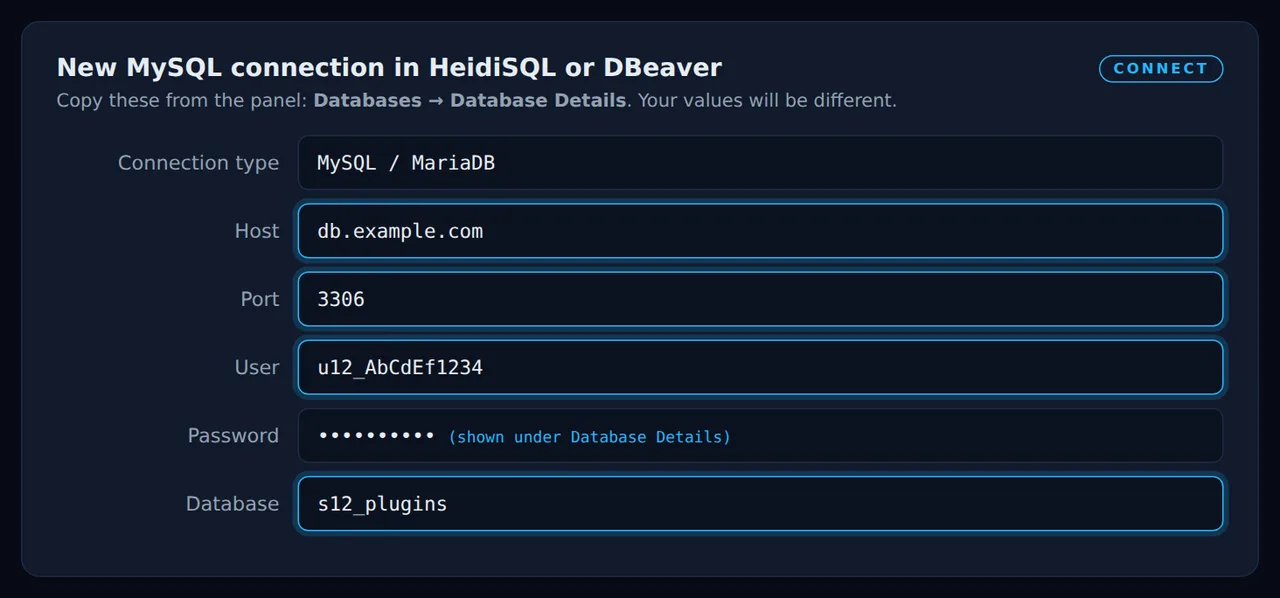
Use a free database program on your computer, such as HeidiSQL (Windows) or DBeaver (Windows, Mac, Linux):
- Make a new MySQL connection with the host from your Endpoint, port
3306, and your username and password. - Import: open your database and run your
.sqlfile (in HeidiSQL: File → Run SQL file). - Export: right-click the database and choose Export database as SQL (HeidiSQL) or Tools → Dump database (DBeaver).
Your database isn't part of panel backups. Export it now and then if its data matters to you.
Troubleshooting
- "Access denied": copy the username and password again. They're case-sensitive.
- "Unknown database": use the full database name from the panel (with the
s12_part), not just the name you typed. - Desktop tool can't connect: Connection From must be empty or
%. If you set something else, delete and re-create the database.
Stuck?
Open a ticket in the client area and tell us what you've tried. We'll point you in the right direction.
Open a ticket