Upload files with the File Manager or SFTP
Two ways to get files onto your server: the File Manager in your browser, or an SFTP program for big uploads.
Option 1: the File Manager (up to 100 MB per file)
- Open your server in the game panel and click Files.
- Go into the folder you want (for example
plugins). - Click Upload and choose Upload Files or Upload Folders, or drag files from your computer onto the page.
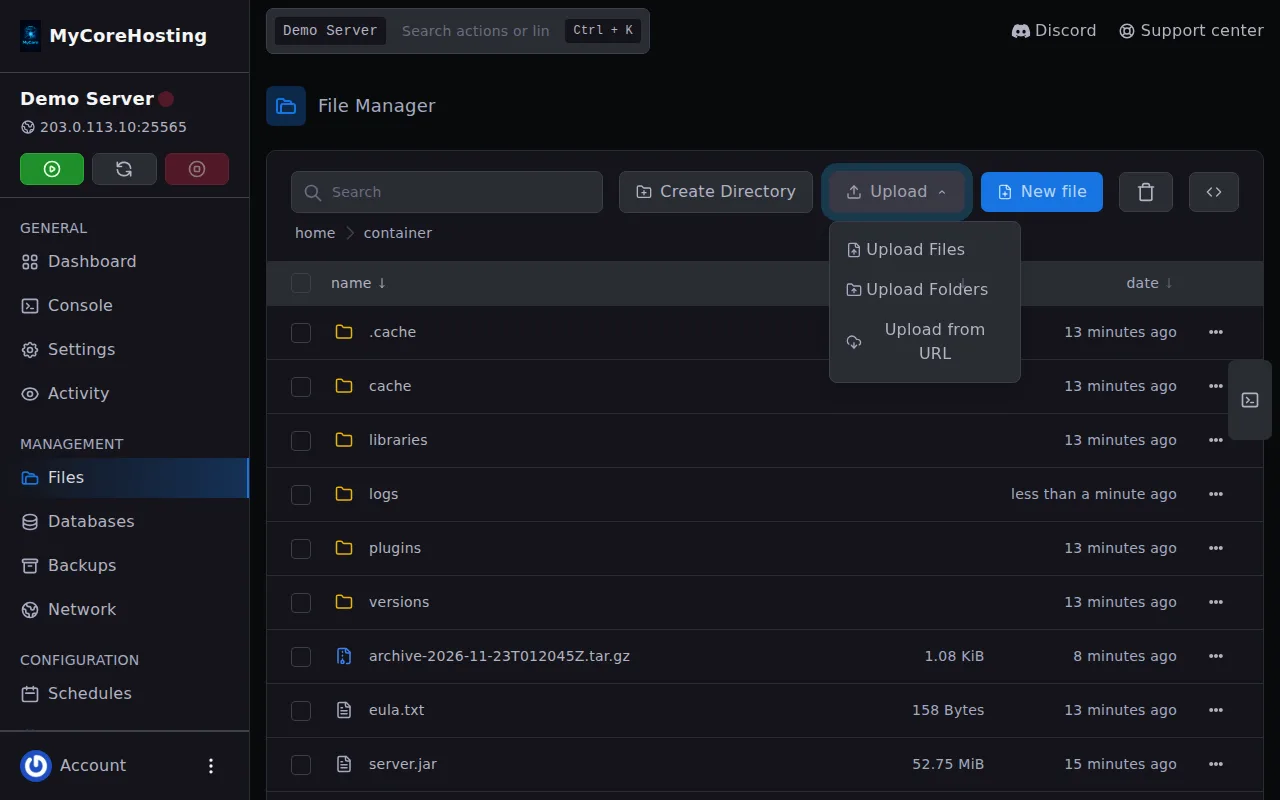
Upload from URL downloads a file straight to your server from a link, which is handy for plugin downloads. You can also upload a .zip and extract it: click the ⋯ menu next to it and choose Unarchive. To download several files, tick them and choose Archive, then download the archive.
You can also edit text files like server.properties right in the browser: click the file, change it, and press Save Content.
Option 2: SFTP (any size)
For big worlds or lots of files, use a free SFTP program such as FileZilla (Windows, Mac, Linux) or WinSCP (Windows).
- In the panel, open Settings. Under SFTP Details you'll see the server address and your SFTP username.
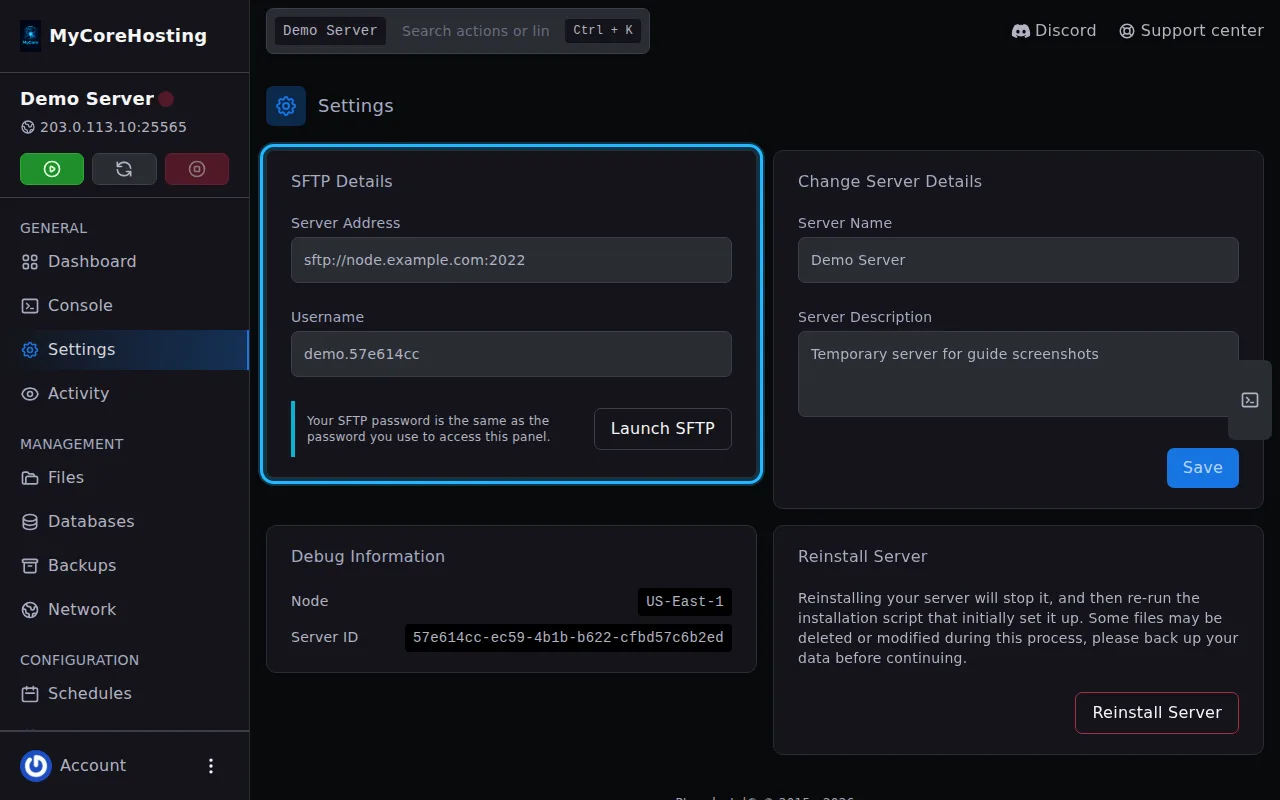
Settings → SFTP Details shows your SFTP address and username (example values). - In your SFTP program, enter those details. The address
sftp://node.example.com:2022means hostnode.example.comand port2022:Protocol: SFTP Host: (from SFTP Details, e.g. node.example.com) Port: 2022 Username: (from SFTP Details, e.g. yourname.1a2b3c4d) Password: your game panel password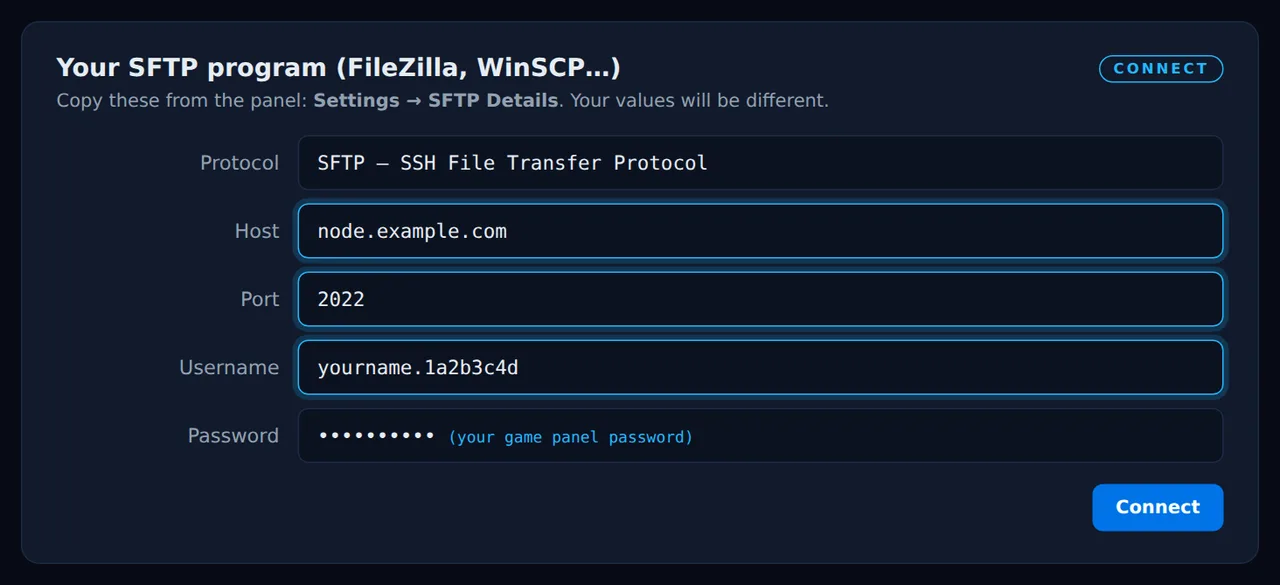
What to type in FileZilla, WinSCP or any SFTP program. - Connect. You'll see your server's files. Drag files between your computer and the server.
Stop the server before replacing world files. Copying a world into a running server can corrupt it.
Troubleshooting
- Connection refused or timed out: check that the port is
2022and the protocol is SFTP (not FTP). - Authentication failed: the username must include the part after the dot, and the password is your panel password, not your client area password if they differ.
- Upload stops at 100 MB in the browser: that's the File Manager limit. Use SFTP for larger files.
Stuck?
Open a ticket in the client area and tell us what you've tried. We'll point you in the right direction.
Open a ticket