Move your server from another host
Moving takes about 15–30 minutes for most servers. You'll download everything from your old host, then upload it here.
1. Check your old server's version and software
On your old host, note the Minecraft version and the server software (Paper, Purpur, Spigot, Fabric, Forge, Vanilla). Your new server should run the same, or a newer version. See Change your Minecraft version and Use a custom server jar.
2. Download everything from your old host
- Stop the old server so the world is saved.
- Download the whole server folder. The easiest ways are your old host's backup download, or an SFTP program (see Upload files).
What matters most:
- World folders:
world,world_nether,world_the_end(or whatever yourlevel-nameis) plugins/(ormods/andconfig/for modded servers)server.properties,whitelist.json,ops.json,banned-players.json,banned-ips.json- Paper/Spigot settings:
bukkit.yml,spigot.yml,config/paper-global.yml,config/paper-world-defaults.yml
You don't need the old host's server jar if you're running Paper here. Your MyCore server already has one.
3. If your plugins use MySQL, export the database
On your old host, open phpMyAdmin (or their database tool) and Export your database as a .sql file. You'll import it in step 6.
4. Upload to MyCore
- In the game panel, Stop your new server.
- Open Files and delete the fresh
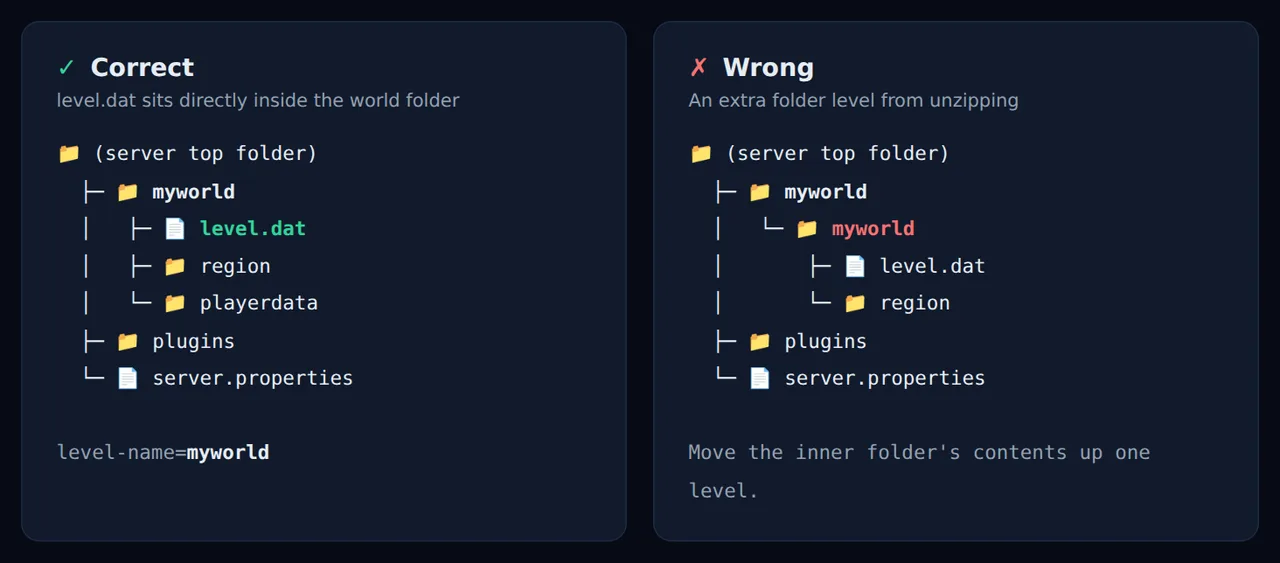
worldfolders it created (you're replacing them). - Upload your files: use Upload → Upload Folders, or upload a zip and Unarchive it (up to 100 MB per file), or use SFTP for bigger servers.
- Make sure the files sit directly in the top folder, not inside an extra folder like
/server/world.
5. Keep your network settings
Your old server.properties is fine to keep. The panel sets server-port and server-ip for you automatically when the server starts, so ignore the old values there.
6. Reconnect plugins to a database
Create your database in the panel's Databases tab, import your .sql file, and update each plugin's config with the new details. MySQL databases shows how.
7. Start and check
Press Start and watch the console. Plugin errors show up in red. Join the server and check your builds, inventories and permissions.
8. Tell your players
Share your new address from the panel's sidebar or Dashboard. If you use your own domain, point it at your new server (see Use your own domain) so players don't have to change anything.
Troubleshooting
- A brand-new world loads instead of yours:
level-nameinserver.propertiesmust match your world folder's name exactly. - Coming from Vanilla, Fabric or Forge to Paper: those keep the Nether and End inside
world/DIM-1andworld/DIM1. Paper moves them intoworld_netherandworld_the_endby itself on the first start. - "Unsupported class file" or Java errors: change the Java version in Startup → Docker Image (see Change your Minecraft version).
Stuck?
Open a ticket in the client area and tell us what you've tried. We'll point you in the right direction.
Open a ticket